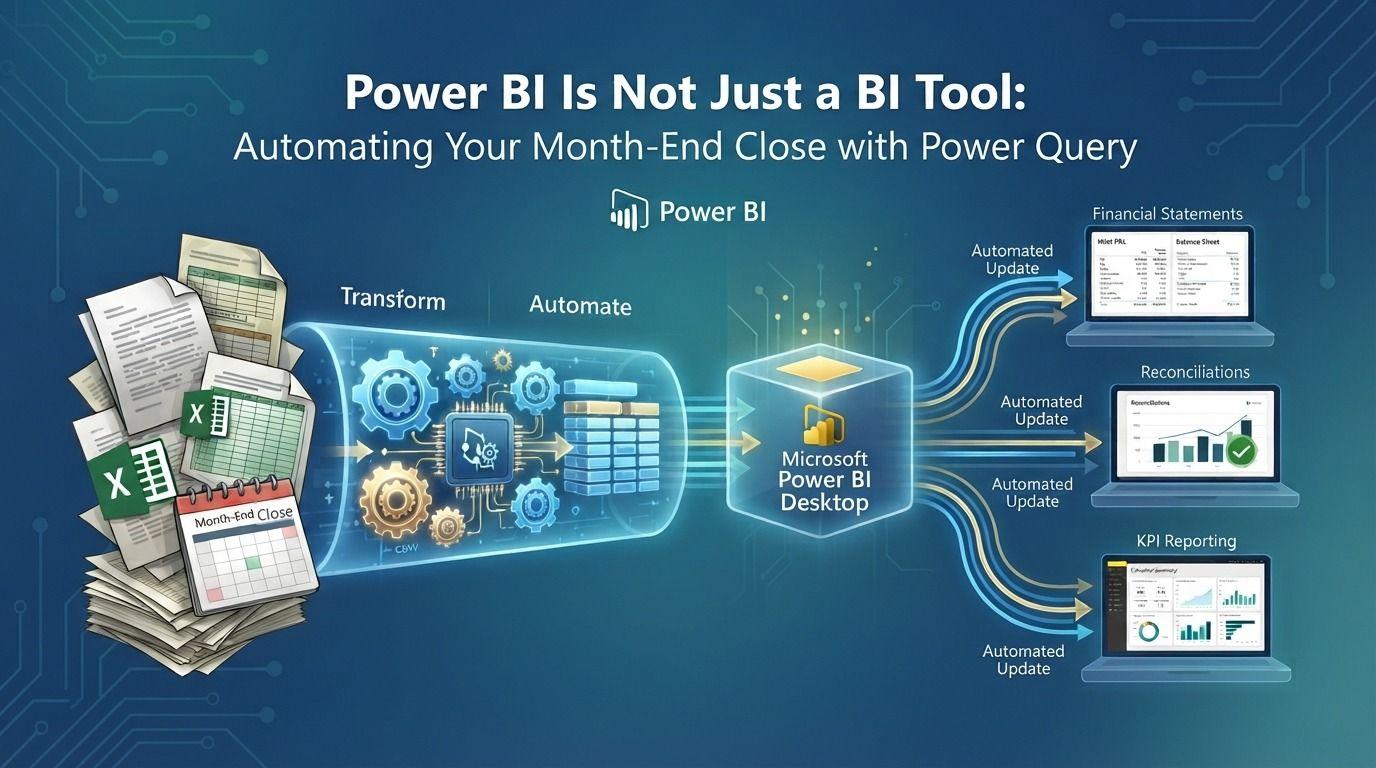
Ask most people what Power BI does and they'll say "dashboards". That's true, but it misses one of its most valuable uses, especially for finance teams: automation.
Every month, accountants spend days on the same manual tasks: downloading files, copying and pasting, cleaning data, matching transactions and rebuilding the same reports. Much of that work can be done by Power BI, and in particular by Power Query, automatically, every time you press Refresh.
The manual work hiding in every month-end close
Look at a typical close calendar and you'll find tasks like these:
- Downloading bank statements and combining them into one file
- Exporting the trial balance and mapping accounts to report lines
- Cleaning ERP exports: removing blank rows, fixing dates, splitting columns
- Reconciling bank transactions against the ledger
- Matching intercompany balances between entities
- Converting balances from local currencies at month-end rates
- Updating accrual, prepayment and fixed asset schedules
- Building the management pack in Excel and emailing it to managers
None of these tasks needs judgment every time. They need the same steps repeated, correctly, every month. That's exactly what Power Query is built for.
Power Query: record once, repeat forever
Power Query records every cleaning and transformation step you take. Next month, it repeats the same steps on the new data in seconds. You build the process once, and refreshing replaces the manual work.
Here are the techniques that save finance teams the most time.
1. Combine all files from a folder
Instead of opening and pasting each file, point Power Query at a folder. Every file dropped into that folder is picked up on the next refresh:
let
    Source = Folder.Files(FolderPath),
    ExcelFiles = Table.SelectRows(Source, each [Extension] = ".xlsx"),
    WithData = Table.AddColumn(ExcelFiles, "Data",
        each Excel.Workbook([Content], true){0}[Data]),
    Combined = Table.Combine(WithData[Data])
in
    Combined
This works for bank statements, branch reports, monthly sales files and any recurring export.
2. Clean messy exports automatically
Remove header rows, promote headers, fix data types, trim text, split columns and unpivot month columns into rows. Once these steps are recorded, the next export is cleaned exactly the same way.
3. Reconcile with merges
Reconciliation is matching two lists and finding what doesn't match. Power Query's merge with an anti join returns exactly the unmatched items:
Unmatched = Table.NestedJoin(
    Bank, {"Reference", "Amount"},
    Ledger, {"Reference", "Amount"},
    "Ledger", JoinKind.LeftAnti
)
The result is a list of bank transactions with no matching ledger entry, ready for review. The same approach works for intercompany matching and supplier statement reconciliations.
4. Map accounts with a mapping table
Keep a small table that maps each GL account to its report line. Power Query merges it with the trial balance, and any new, unmapped account is flagged straight away instead of silently missing from the report.
5. Use parameters for the period
A parameter for the reporting month lets the whole process run for any period by changing one value, with no formulas to edit.
Beyond Power Query: automation in the Power BI Service
Once the data is prepared, the Power BI Service takes over the rest:
- Scheduled refresh updates reports automatically, using a gateway for files and on-premises systems
- Email subscriptions send reports to managers on a schedule, so nobody waits for an attachment
- Data alerts notify people when a number crosses a threshold, such as cash falling below a minimum
- Paginated reports produce print-ready, formatted management packs and statements
- Dataflows let several reports reuse the same prepared data
- Power Automate can trigger approvals, send notifications or start a refresh when a new file arrives
A month-end close, before and after
Before: day one is spent collecting and cleaning files. Day two is spent reconciling in Excel. Day three is spent building the pack. Questions from management come after day four.
After: files land in a folder and the refresh runs. Reconciliation exceptions appear on a review page. The management pack updates itself. The team spends its time on the exceptions and the analysis, which is where accountants add real value.
Building in controls
Automation should make the close more reliable, not less. Add check measures that should always return zero, such as trial balance totals and reconciliation differences, and put them on a validation page. If a check fails, you know before the report reaches management.
Final thoughts
Power BI is a reporting tool, but for finance teams it's also one of the most practical automation tools available, and most companies already have it. Power Query alone can remove days of manual work from every month-end close.
Tecrionix helps finance teams automate their reporting and month-end processes with Power BI. Our Power Excel Training and Power BI Training both teach Power Query hands-on, and our consulting services can build the automation for you. Contact us to find out more.